PostHog Integration
PostHog is an open-source product analytics platform for understanding user behavior, feature performance, and product trends. Our PostHog integration allows you to send user, company, and event data from PostHog into Userlist.
How it works
Step 1. Add Userlist as a destination
In your PostHog account, go to “Data pipelines” in the sidebar menu, in the “Tools” category. Then, click on the “New +” at the top right of the page and select “Destination”. Look for the “Userlist” integration from the list of available destinations. Then click the Create + button.
Step 2. Enter your Push API Key
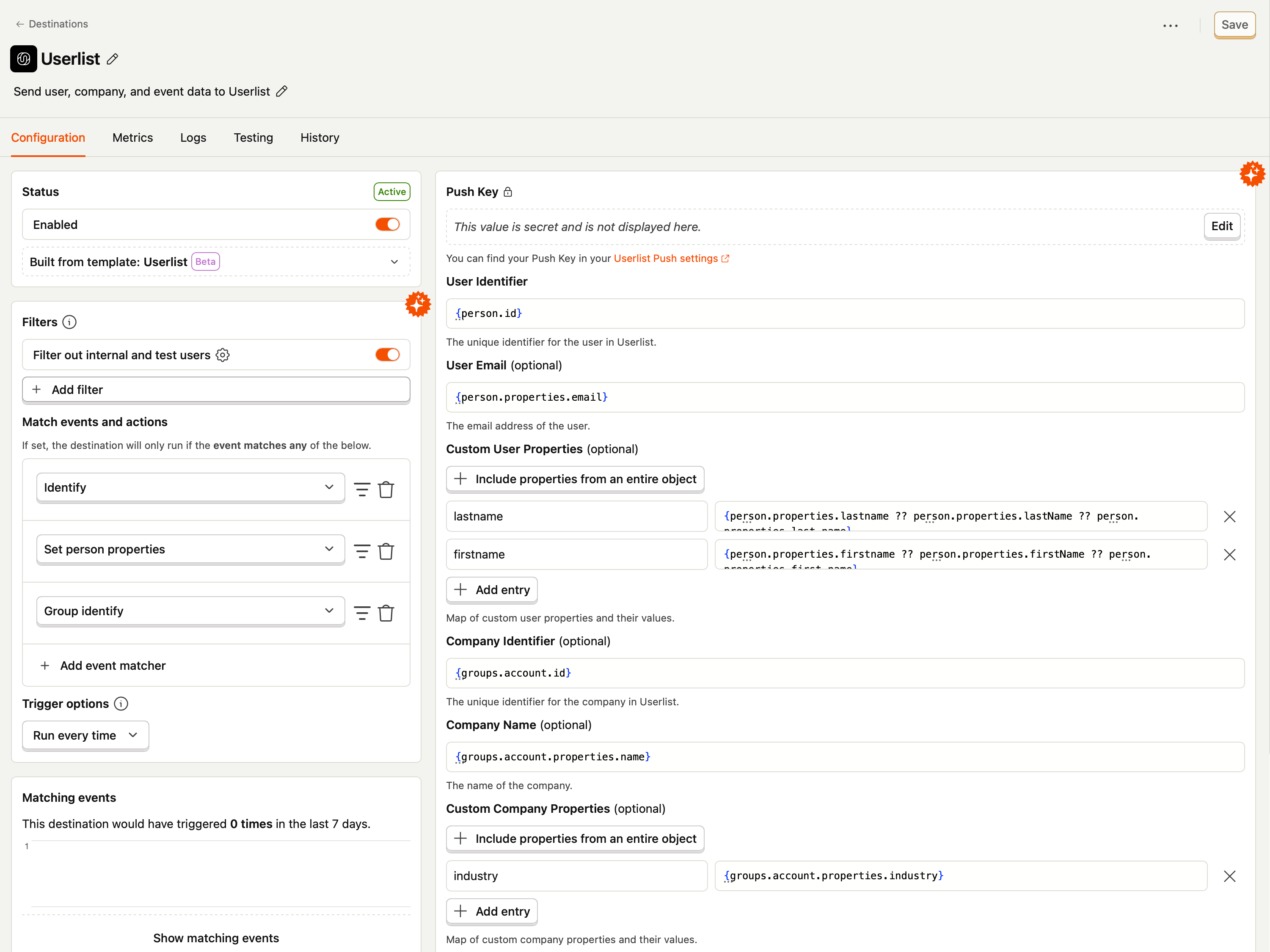
Head over to the Push API Settings page in Userlist and copy your Push Key. Inside the destination settings of PostHog, enter the value into the Push Key field. You can customize which properties are sent to Userlist by modifying the Custom User Properties and Custom Company Properties fields.
Step 3. Enable the destination
Once you’ve configured the destination, make sure to enable it by clicking the Create & enable button at the top or bottom right of the page.
Step 4. (Optional) Send additional custom events
By default, the PostHog integration is configured with three event matchers: Identify, Set person properties, and Group identify. These keep your user and company profiles in sync, but they don’t include the custom product events you’ve been tracking in PostHog (such as Signed up, Created project, or Upgraded plan).
To forward these events into Userlist, you’ll need to add them to the Match events and actions section of the destination. The destination only runs when an event matches one of the entries in this list, so any event you don’t add here will be ignored.
Add an event matcher
Scroll down to the Match events and actions section of the destination settings and click the Add event matcher button. A new row will appear with a dropdown.
Click the dropdown to open the event picker. Select the event or action you want to forward, and the matcher will be added to the list. Repeat for any additional events you want to send to Userlist.
Save your changes
Once you’ve added the event matchers, click the Save button at the top right of the page to apply your changes. New events will start flowing into Userlist as soon as they’re triggered in PostHog.